
To get an email notification when a product is added to a WooCommerce cart, follow these steps. It’s a straightforward process but requires a few settings adjustments.
Running an online store can be a demanding task. Keeping track of customer activities is crucial. One important task is knowing when a product is added to a cart. This information can help you manage stock and improve customer service.
By setting up email notifications for this event, you stay informed in real-time. This guide will show you how to set it up in WooCommerce. It’s simple and won’t take much time. Let’s get started on making your store more efficient.
Setting Up Woocommerce
Receive email notifications when a product is added to the WooCommerce cart. Install the “WooCommerce Cart Notifications” plugin. Configure settings to your email preferences.
Setting up WooCommerce on your WordPress site is simple. This plugin transforms your site into a powerful eCommerce platform. First, you need to install WooCommerce and configure its basic settings.
Installing Woocommerce
1. Go to your WordPress dashboard.
2. Click on “Plugins” and select “Add New”.
3. Search for “WooCommerce” in the search bar.
4. Click “Install Now” next to the WooCommerce plugin.
5. After installation, click “Activate”.
Once activated, WooCommerce will guide you through a setup wizard. Follow the steps for a quick setup.
Configuring Basic Settings
1. Go to WooCommerce settings from the dashboard.
2. Set your store’s location in the “General” tab.
3. Choose the currency you will accept.
4. In the “Products” tab, set your measurement units.
5. Configure payment options in the “Payments” tab.
6. Set up shipping methods in the “Shipping” tab.
These settings are essential for your store. Ensure every detail aligns with your business needs. Now, you are ready to manage products and orders effectively.
“`
Choosing A Notification Plugin
Discover how to get email notifications when a product is added to a WooCommerce cart. Choose the right notification plugin to stay informed and respond quickly to customer actions. This helps in managing inventory and improving customer service.
Selecting the right notification plugin for your WooCommerce store is crucial. It ensures you get timely emails when products are added to the cart. This helps you stay updated and improve customer experience. Here, we will discuss the top plugins and criteria for selection.
Top Plugins For Email Notifications
Several plugins can help you with email notifications. Here are some top choices:
1. WooCommerce Cart Notifications: This plugin is user-friendly and integrates smoothly with WooCommerce. It sends instant email alerts.
2. WooCommerce Follow Ups: Ideal for sending follow-up emails when a product is added to the cart. It offers customization options.
3. YITH WooCommerce Email Templates: This plugin offers beautiful email templates and easy configuration for cart notifications.
4. WP Mail SMTP: Ensures your emails reach the inbox and not the spam folder. It works well with WooCommerce.
Criteria For Selection
Choosing the right plugin involves considering several factors. Here are some key criteria:
1. Ease of Use: The plugin should be easy to install and configure. A simple interface is a plus.
2. Compatibility: Ensure the plugin is compatible with your WooCommerce version. Check for regular updates.
3. Customization Options: Look for plugins that allow you to customize email templates. This ensures your emails match your brand.
4. Delivery Reliability: The plugin should have a good track record of reliable email delivery. Check reviews and ratings.
5. Support and Documentation: Good customer support and comprehensive documentation are essential. They help in troubleshooting and setup.
Choosing the right plugin can make a significant difference. It ensures you stay informed and engage better with your customers.
“`
Installing The Plugin
Installing the plugin for email notifications in WooCommerce is simple. Follow these steps to get started. This plugin helps store owners get notified when customers add products to their carts.
Downloading The Plugin
First, go to the WordPress dashboard. Navigate to the “Plugins” section. Click on “Add New”. In the search bar, type the name of the plugin you need. Look for “WooCommerce Cart Notifications” or a similar plugin. Once you find it, click “Install Now”. Wait for the installation to complete.
Activating The Plugin
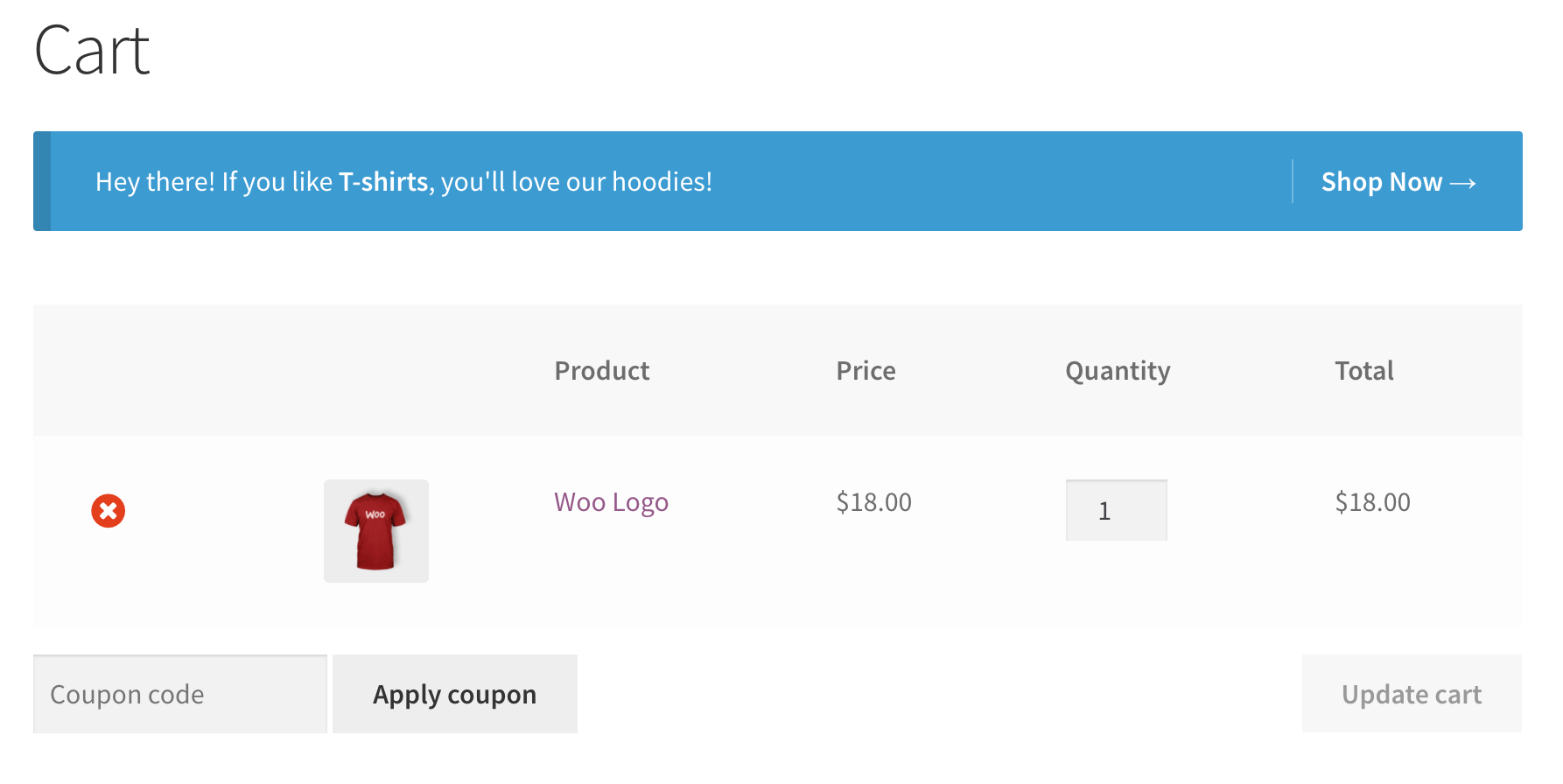
After downloading, click the “Activate” button. This will enable the plugin on your site. You will see a confirmation message. Now, the plugin is active and ready to configure. Visit the plugin settings to customize email notifications. This ensures you receive alerts when products are added to the cart.
Credit: woocommerce.com
Configuring The Plugin
Configuring the plugin to get email notifications when a product is added to the WooCommerce cart is a straightforward process. This guide will walk you through setting up email templates and customizing notification settings to ensure you stay updated.
Setting Up Email Templates
Creating an effective email template is essential. Start by navigating to the plugin settings in your WordPress dashboard.
Here, you can configure the email template that will notify you of new products added to the cart.
Use the available fields to customize your email:
- Email Subject: Choose a clear subject.
- Email Body: Include all necessary details.
Remember to save your changes.
Customizing Notification Settings
Next, adjust the notification settings to suit your needs. Go back to the plugin settings.
Here, you can choose when and how you receive notifications.
Options include:
- Frequency: Immediate, hourly, or daily.
- Recipients: Add multiple email addresses.
Ensure all settings align with your preferences.
Tip: Regularly review and update your settings for optimal performance.
Testing Email Notifications
Testing email notifications is a crucial step in ensuring your WooCommerce store runs smoothly. This helps you ensure that customers receive timely updates about their cart activities. Follow the steps below to test email notifications.
Adding A Product To Cart
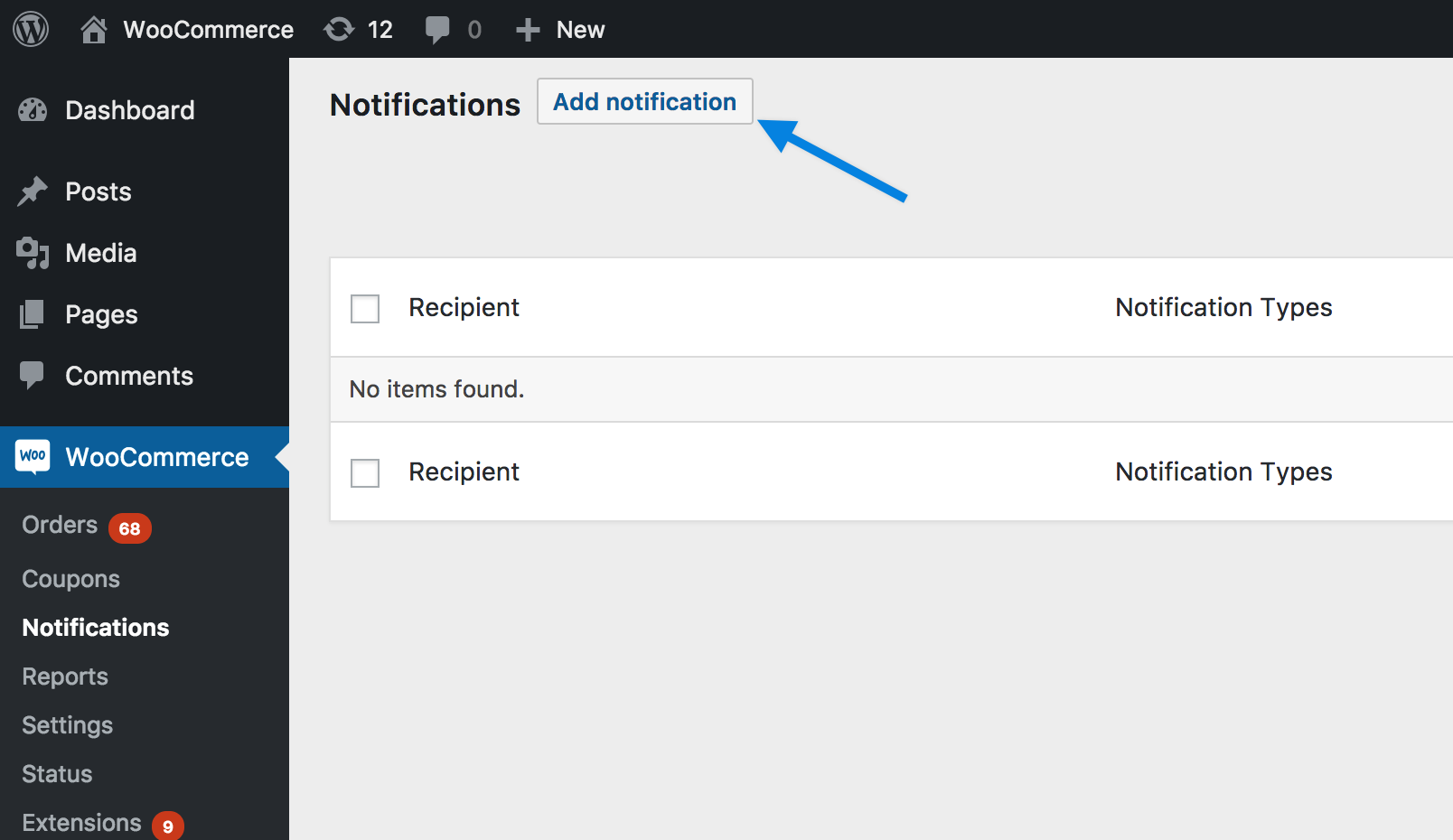
First, navigate to your WooCommerce store. Browse through the products and select one to add to your cart. Click the “Add to Cart” button. This action triggers the email notification process.
Checking Email Delivery
Next, check the email inbox associated with your WooCommerce store. Look for an email notification confirming the addition of the product to the cart. Ensure that the email arrives promptly and contains accurate information.
If you do not see the email, check your spam or junk folder. Sometimes, emails might be incorrectly flagged as spam. Mark the email as “Not Spam” to improve future delivery.
If the email still does not appear, review your WooCommerce email settings. Ensure that the correct email address is configured. Verify that email notifications are enabled for cart activities.
Successful delivery means your notification system works. You can now assure your customers that they will receive timely updates.
Credit: woocommerce.com
Troubleshooting Issues
Even with the best setups, you might face issues with getting email notifications when a product is added to the WooCommerce cart. Let’s explore some common problems and their solutions. If all else fails, contacting support can help resolve these issues.
Common Problems And Solutions
Sometimes, email notifications don’t work as expected. Here are some common problems and how to solve them:
| Problem | Solution |
|---|---|
| Emails not sent | Check your server’s email settings. Ensure the email function is enabled. |
| Emails marked as spam | Use a trusted email provider. Add SPF and DKIM records to your domain. |
| Incorrect email address | Verify the email address in the WooCommerce settings. Correct any typos. |
Contacting Support
If common solutions don’t work, contacting support is the next step. Here is how to do it effectively:
- Visit the WooCommerce support page.
- Submit a detailed support ticket. Include the steps taken and screenshots.
- Follow up if you don’t get a response in a few days.
Support teams can help resolve the issues quickly. They have access to tools and logs that you might not have.
Advanced Customizations
Advanced customizations can take your WooCommerce store to the next level. They allow you to tailor the user experience and streamline operations. This section focuses on using hooks and filters, and integrating with other plugins to get email notifications when a product is added to the cart.
Using Hooks And Filters
WooCommerce provides hooks and filters to customize functionality. Hooks allow you to insert custom code at various points in the WooCommerce process. Filters enable you to modify data before it is displayed.
To get email notifications, you can use the woocommerce_add_to_cart hook. This hook triggers when a product is added to the cart. Here is a sample code snippet:
function notify_on_add_to_cart( $cart_item_key, $product_id, $quantity, $variation_id, $cart_item_data ) {
    $to = 'your-email@example.com';
    $subject = 'Product Added to Cart';
    $body = 'A product has been added to the cart. Product ID: ' . $product_id;
    wp_mail( $to, $subject, $body );
}
add_action( 'woocommerce_add_to_cart', 'notify_on_add_to_cart', 10, 5 );
Insert this code in your theme’s functions.php file. It sends an email every time a product is added to the cart.
Integrating With Other Plugins
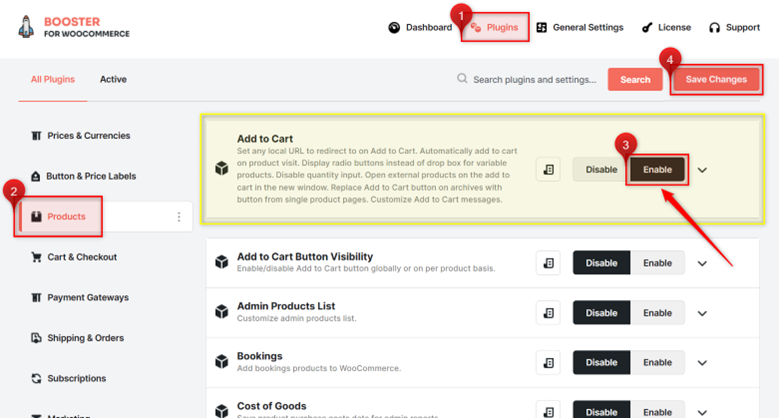
Integrating with plugins can add even more functionality. One useful plugin is WP Mail SMTP. It ensures your email notifications are delivered reliably.
Another helpful plugin is WooCommerce Custom Notifications. It provides flexible notifications based on various triggers. Configure it to send emails when products are added to the cart.
To set up custom notifications:
- Install and activate the WooCommerce Custom Notifications plugin.
- Navigate to the plugin settings.
- Create a new notification rule.
- Select “Product Added to Cart” as the trigger.
- Specify the email template and recipients.
Using these plugins together, you can ensure that you never miss an important notification.
Credit: booster.io
Frequently Asked Questions
How Do I Get Email Notifications In Woocommerce?
You can use plugins to get email notifications in WooCommerce. Plugins like WooCommerce Cart Notifications can help automate this process.
Which Plugin Is Best For Woocommerce Cart Notifications?
WooCommerce Cart Notifications is a highly recommended plugin. It’s user-friendly and offers customizable email notifications when products are added to the cart.
Can I Customize Woocommerce Email Notifications?
Yes, you can customize WooCommerce email notifications. Most WooCommerce notification plugins allow you to tailor email content to fit your needs.
Is Coding Required For Woocommerce Email Notifications?
No, coding is not required. Most WooCommerce notification plugins are designed to be user-friendly and don’t need coding skills.
Conclusion
Setting up email notifications for WooCommerce carts is simple. Follow the steps above. Ensure you stay updated with your product inventory. This keeps your customers informed and happy. Implementing this feature boosts your online store’s efficiency. Take control of your notifications today.
Happy selling!
