

Creating a business Gmail account is quick and easy. It helps you manage professional emails efficiently.
In today’s digital world, a business email is essential. It shows professionalism and builds trust with clients and partners. Gmail is one of the most popular email services. It offers many features that are perfect for business use. From organizing your inbox to integrating with other tools, it’s a great choice.
This guide will walk you through the steps to set up your business Gmail account. Follow along to get started on enhancing your business communication today.
Benefits Of A Business Gmail Account
Creating a business Gmail account can greatly improve your company’s communication and efficiency. It offers several advantages that help you maintain a professional appearance and utilize advanced features tailored for business needs.
Professional Image
A business Gmail account enhances your company’s professional image. Instead of using a generic email address, you can have one that includes your domain name. This helps build trust and credibility with clients and partners. For example, using yourname@yourcompany.com looks more professional than yourname@gmail.com.
Having a custom email address also makes your business look established. Clients are more likely to trust an email from a professional domain. It shows that you are serious about your business. This small change can make a big difference.
Advanced Features
A business Gmail account comes with several advanced features that are not available in personal accounts. These features help improve productivity and collaboration within your team.
- Google Workspace Integration: Access tools like Google Drive, Calendar, and Meet.
- Enhanced Security: Enjoy advanced security features such as two-step verification and spam filtering.
- More Storage: Get increased storage space for emails and files.
- Priority Support: Receive 24/7 customer support from Google.
- Admin Controls: Manage user accounts and set policies for your team.
These features help streamline your business operations. They also improve communication and collaboration among team members. You can share files and schedule meetings with ease. The enhanced security ensures your data remains safe.
| Feature | Benefit |
|---|---|
| Custom Email Address | Projects a professional image |
| Google Workspace Integration | Improves productivity and collaboration |
| Enhanced Security | Keeps data safe |
| More Storage | Stores more emails and files |
| Priority Support | Access to 24/7 customer support |
| Admin Controls | Manage user accounts and policies |
In summary, a business Gmail account offers numerous benefits. It enhances your professional image and provides advanced features that help your business thrive.
Credit: flashissue.com
Prerequisites
Creating a business Gmail account involves a few crucial steps. Before diving into the setup process, ensure you have the necessary prerequisites. These prerequisites will streamline the creation process and help avoid any interruptions. Let’s explore the key elements you need to prepare.
Domain Name
A domain name is essential for a professional business email. It reflects your brand and builds credibility. Choose a domain name that is easy to remember and relevant to your business. Ensure the domain name is available and purchase it from a reliable registrar. A unique domain name sets your business apart and enhances your professional image.
Business Information
Gather all relevant business information before creating the Gmail account. This includes your business name, address, phone number, and any other pertinent details. Accurate information ensures your business email aligns with your brand identity. It also helps in setting up security features and recovery options. Being prepared with this information will make the process smoother and faster.
Creating A Google Workspace Account
Creating a Google Workspace account is crucial for your business. It provides professional email addresses using your company’s domain. This also includes access to Google’s suite of productivity tools. Follow these steps to set up your Google Workspace account.
Signing Up
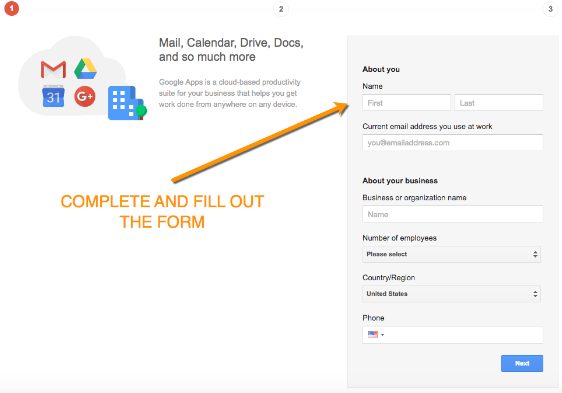
First, go to the Google Workspace website. Click on the “Get Started” button. You will be directed to a sign-up page.
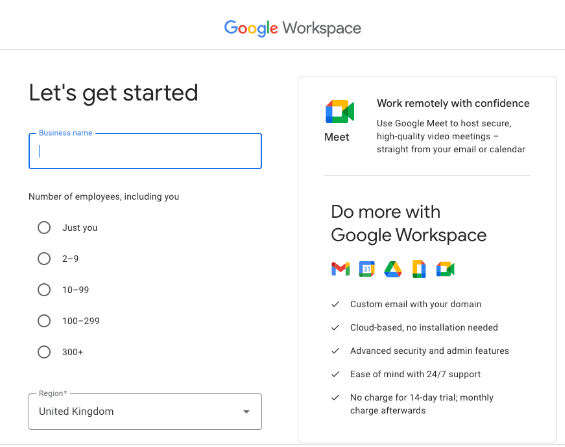
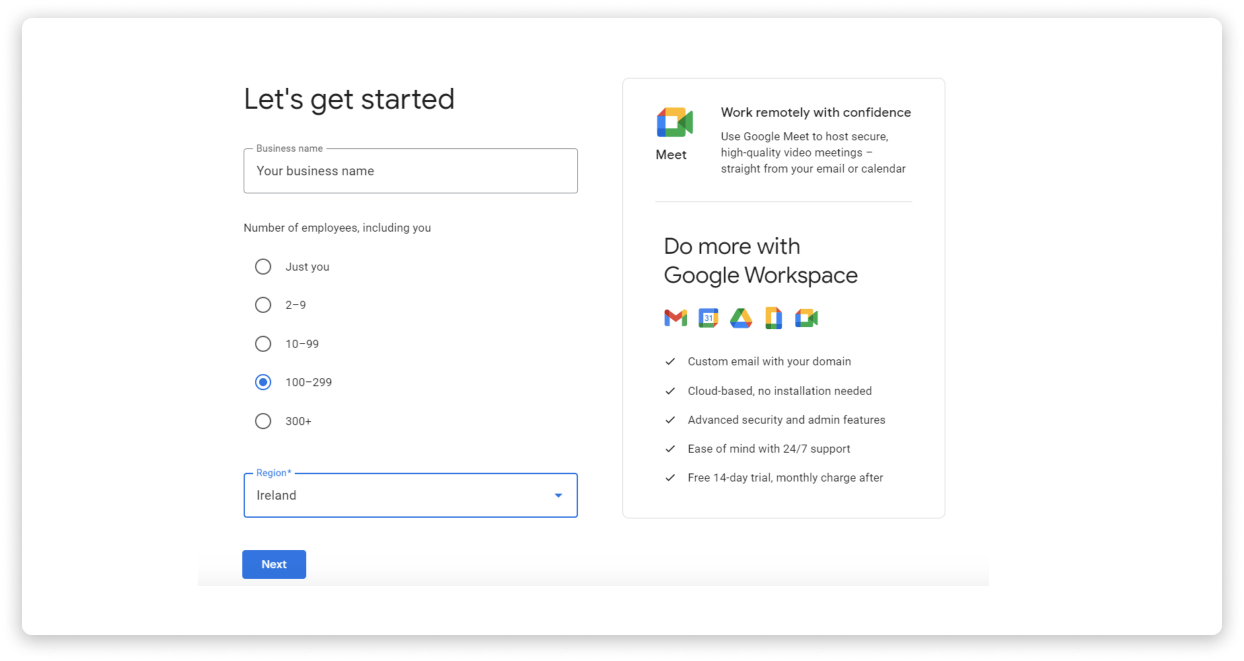
Fill in your business name, number of employees, and your country. Then, click “Next”. Enter your contact information, including your name and current email address. Click “Next” again.
Now, you will need to choose whether you have a domain. If you do, enter it. If not, you can buy one through Google. This step is crucial for a professional email address.
Choosing A Plan
Google Workspace offers several plans to fit different business needs. These plans include:
- Business Starter: Basic email and collaboration tools.
- Business Standard: Enhanced features with more storage.
- Business Plus: Advanced tools and admin controls.
- Enterprise: Comprehensive tools for large organizations.
Compare the features of each plan to decide what suits your business. Consider the number of users, storage requirements, and advanced features needed. Once you have chosen a plan, click “Next”.
After selecting a plan, you will need to set up billing. Enter your payment information and review the terms of service. Click “Agree and Continue”.
Congratulations! You have now created your Google Workspace account. You can now start setting up email accounts for your team and explore Google’s productivity tools.
Setting Up Your Domain
Setting up your domain is a crucial step in creating a Business Gmail Account. This process ensures your email addresses are branded with your unique domain name. It also adds a layer of professionalism to your business communication.
Domain Verification
First, verify your domain ownership. This step is necessary to ensure you control the domain. Google provides a few methods for domain verification. Choose the method that best suits your technical skills.
One common method is adding a TXT record to your domain’s DNS settings. Access your domain registrar’s website. Locate the DNS settings. Add the TXT record provided by Google. Save the changes. It may take a few minutes for the changes to take effect.
Another method involves uploading an HTML file to your website. Download the HTML file from your Google Admin console. Upload it to the root directory of your website. Once uploaded, click the verify button in your Google Admin console.
Mx Records Configuration
Configuring your MX records is the next step. MX records direct your email to Google servers. Access your domain registrar’s website. Locate the DNS settings. Find the section for MX records.
Replace any existing MX records with the new ones provided by Google. Enter the priority and value information accurately. Save your changes. This step ensures emails reach your Business Gmail Account.
It may take up to 48 hours for the MX record changes to propagate. Check back to ensure everything is set correctly. Once done, your email should function seamlessly with your Business Gmail Account.
Creating User Accounts
Creating user accounts in your business Gmail is essential. It helps organize communication and enhances collaboration. This section guides you through adding users and assigning roles efficiently.
Adding Users
To start, sign in to your Google Admin console. Use your administrator account. Navigate to the “Users” section. Click on “Add user” and fill in the required fields. Enter the first name, last name, and email address. You can also choose to add more details like department.
After entering the information, click “Create.” The new user will receive an email. They must follow the instructions to set up their account. This simple process ensures each team member has access.
Assigning Roles
Assigning roles is crucial for managing permissions. In the Admin console, go to the “Users” section. Select the user you wish to assign a role to. Click on their name to open their account settings.
Next, click on “Roles and privileges.” Choose the appropriate role from the list. Common roles include User, Admin, and Super Admin. Each role has different permissions. Assign the role that fits the user’s responsibilities. This step ensures proper access control and security.
Credit: mailmeteor.com
Configuring Email Settings
Setting up your business Gmail account is just the beginning. Configuring email settings ensures your email works efficiently. Proper configuration keeps your inbox clean and your messages professional. Let’s explore two key aspects: Spam Filters and Signature Setup.
Spam Filters
Spam can clutter your inbox and waste time. Gmail’s spam filters help manage this. To configure:
- Open Gmail and click on the gear icon.
- Select See all settings.
- Go to the Filters and Blocked Addresses tab.
- Click on Create a new filter.
- Specify criteria for spam messages.
- Click Create filter.
- Select Delete it or Mark as spam.
These steps will filter out unwanted emails. You can always adjust the settings as needed.
Signature Setup
A professional email signature adds credibility. To set up your signature:
- Click on the gear icon and select See all settings.
- Navigate to the General tab.
- Scroll down to the Signature section.
- Click Create new.
- Enter your name, title, and contact information.
- Use the formatting tools to style your signature.
- Click Save Changes.
Your signature will now appear at the bottom of your emails. It ensures all your messages look professional.
Integrating With Other Tools
Integrating your business Gmail account with other tools can greatly enhance productivity. Google provides a suite of tools that work seamlessly with Gmail. These integrations help streamline your business processes and improve efficiency. Let’s explore some of these tools.
Google Drive
Google Drive is a cloud storage service that lets you store, share, and access your files from anywhere. It integrates smoothly with Gmail.
Here are some ways to use Google Drive with Gmail:
- Attach large files: Instead of sending large files via email, share a Google Drive link.
- Organize documents: Create folders for different projects and share them with team members.
- Collaborate: Work on documents simultaneously with colleagues and see changes in real-time.
Google Calendar
Google Calendar is another tool that integrates well with Gmail. It helps you manage your schedule efficiently.
Here’s how Google Calendar can enhance your Gmail experience:
- Schedule meetings: Create events directly from your email conversations.
- Send invites: Invite team members to events and meetings seamlessly.
- Set reminders: Get notifications for upcoming events and important deadlines.
Using Google Calendar with Gmail ensures you never miss an important meeting or deadline. It keeps your schedule organized and accessible.
Credit: www.wisestamp.com
Managing Your Account
Creating a business Gmail account is only the beginning. Managing the account effectively is crucial. This ensures security and efficient operation. Let’s explore two key areas: Security Settings and Billing Information.
Security Settings
Security settings protect your business information. Start by enabling two-factor authentication. This adds an extra layer of protection. Use a strong and unique password. Change it regularly to avoid breaches. Monitor account activity for any suspicious actions. Set up alerts for unusual sign-ins. Keep your recovery email and phone number updated. This helps in case of any issues.
Billing Information
Accurate billing information is vital. It ensures uninterrupted service. Update billing details whenever necessary. Use a reliable payment method. Keep track of your billing statements. Review them regularly for any discrepancies. Ensure your payment method has sufficient funds. This prevents service interruptions. Set up email notifications for billing updates. This way, you stay informed about your account status.
Frequently Asked Questions
How Do I Create A Business Gmail Account?
To create a business Gmail account, go to the Google Workspace website. Select “Get Started” and follow the prompts. Provide your business details and payment information. Complete the verification process to activate your account.
What Are The Benefits Of A Business Gmail?
A business Gmail offers professional email addresses, increased storage, and advanced security. It also includes collaboration tools like Google Drive and Calendar. These features enhance productivity and security for your business.
How Much Does A Business Gmail Cost?
The cost of a business Gmail account starts at $6 per user per month. Higher-tier plans offer additional features and storage. Choose the plan that best suits your business needs.
Can I Use My Domain With Gmail?
Yes, you can use your custom domain with Gmail. During the setup process, you’ll enter and verify your domain. This allows you to create professional email addresses using your business domain.
Conclusion
Creating a business Gmail account is simple and beneficial. Follow the steps outlined to set up your account quickly. A dedicated business email enhances professionalism. It also keeps personal and business communications separate. This separation helps in organization and efficiency.
Regularly check your business email to stay updated. With a business Gmail account, managing your professional communication becomes easier. Start today and improve your business interactions.
